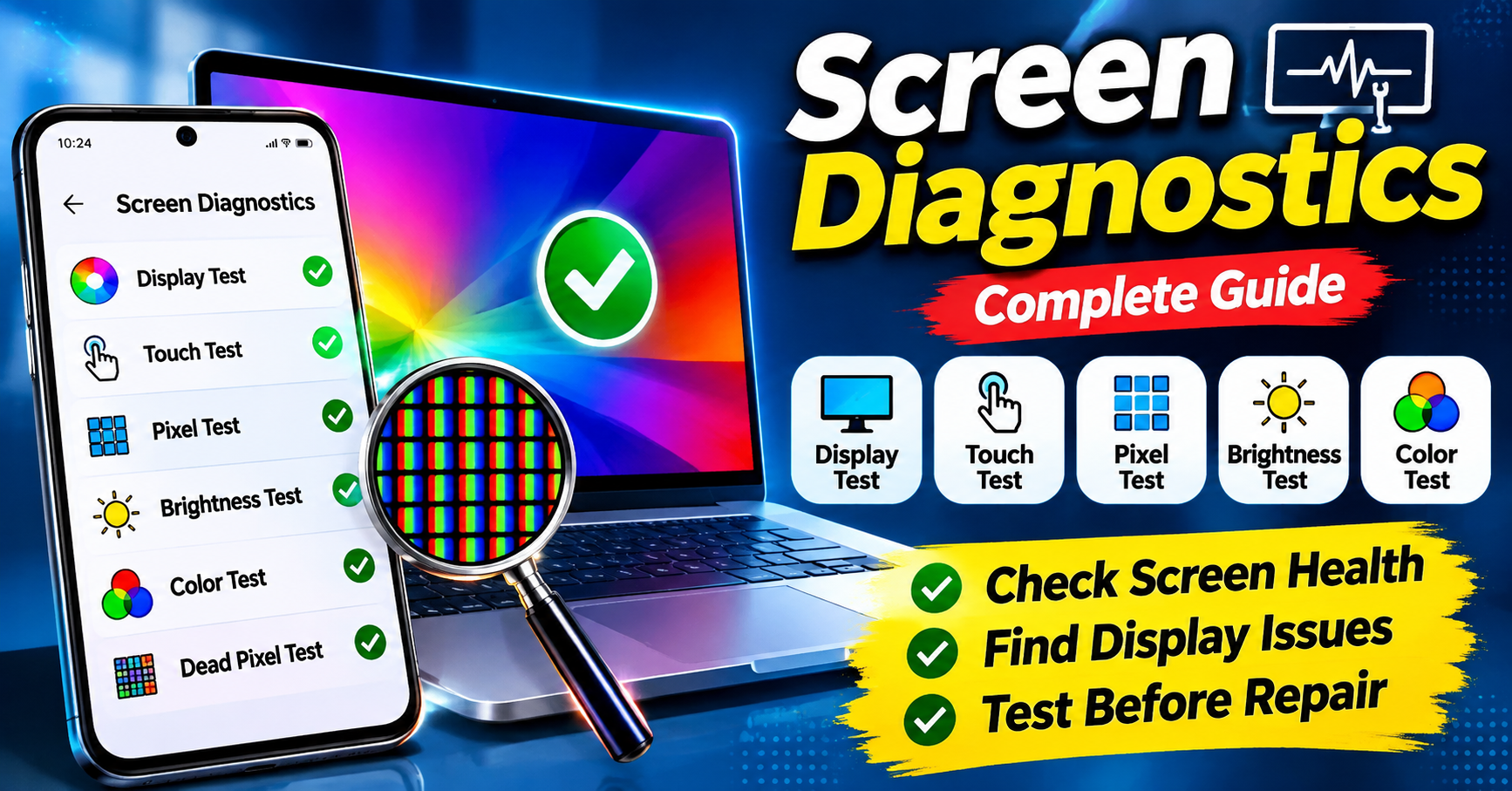
Introduction to Screen Diagnostics
Screen Diagnostics is a useful tool designed to help users identify display-related problems on their smartphones, tablets, computers, and other electronic devices. A device screen is one of the most important components because users depend on it for reading messages, watching videos, browsing the internet, playing games, and performing everyday activities. However, display problems such as dead pixels, touch sensitivity issues, screen flickering, colour distortion, and brightness irregularities can affect the overall user experience.
Screen Diagnostics helps users examine different screen functions and identify possible hardware or software-related problems. By performing simple diagnostic tests, users can understand whether their device display is working correctly or requires further inspection. This type of diagnostic application can be particularly helpful for people who want to check their smartphone condition before purchasing a second-hand device or visiting a mobile service centre.
What Is Screen Diagnostics?
Screen Diagnostics refers to a testing process or diagnostic application that checks the performance and condition of a device’s display. It allows users to examine important screen components, including touch response, colour accuracy, brightness levels, pixel performance, and display consistency.
Related Posts
Depending on the application and device compatibility, users may be able to perform different tests to identify display abnormalities. Some diagnostic tools provide automated testing features, while others allow users to manually inspect specific screen areas.
Screen testing is useful for identifying visible problems that may not be immediately noticeable during normal device usage. For example, a small dead pixel or an unresponsive touchscreen area may become visible only when the screen displays a particular colour or testing pattern.
Importance of Screen Diagnostics
Regular screen testing can help users understand the overall condition of their device display. Smartphones are frequently exposed to accidental drops, pressure, moisture, heat, and continuous usage, which may gradually affect screen performance.
Screen Diagnostics provides a convenient way to check whether the display responds properly to touch inputs and produces consistent colours. It can also help users identify problems before they become more noticeable.
For people purchasing refurbished or second-hand smartphones, screen diagnostics is especially useful. Testing the display before completing a purchase can help identify hidden issues and avoid unexpected repair expenses. Although diagnostic tests cannot guarantee that every hardware problem will be detected, they provide a helpful first-level inspection.
Touchscreen Sensitivity Test
Touchscreen sensitivity is one of the most important features checked through screen diagnostics. Modern smartphones use touchscreen technology to perform almost every activity, including typing, scrolling, opening applications, and navigating menus.
A touchscreen test checks whether different areas of the display respond correctly when touched. Users can move their fingers across the screen, draw lines, tap different sections, and observe whether the device registers their inputs accurately.
If certain areas do not respond, the problem may be related to the touchscreen digitizer, display connection, software configuration, or physical damage. A touchscreen test can help identify these unresponsive areas and provide useful information before professional repair.
Dead Pixel Detection
Dead pixels are small display points that fail to produce the expected colour or light. They may appear as tiny black dots, while stuck pixels may remain permanently visible in a particular colour.
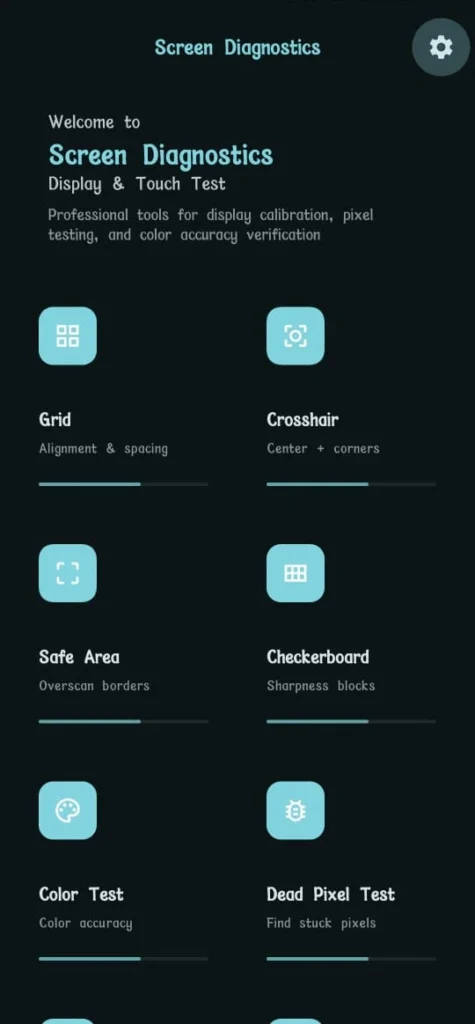
Screen Diagnostics tools can use different solid-colour backgrounds, including red, green, blue, black, and white, to help users identify pixel abnormalities. By displaying these colours across the entire screen, users can inspect whether any individual pixels behave differently from the surrounding display.
Dead pixel detection is particularly useful when checking a newly purchased smartphone, refurbished device, or replacement display. However, users should understand that not every pixel-related issue can be repaired through software.
Display Colour Testing
Colour testing helps users examine whether their device screen displays colours correctly and consistently. A healthy display should produce balanced colours without unusual patches, excessive colour distortion, or unexpected discolouration.
Diagnostic applications may display different colour patterns to examine the screen’s red, green, blue, and white output. Users can observe whether the colours appear uniform across the display or whether certain sections look noticeably different.
Colour testing can help identify possible display panel problems, ageing-related changes, or incorrect display settings. It is also useful when comparing two devices to understand differences in their screen quality.
Brightness and Contrast Testing
Brightness and contrast play an important role in providing a comfortable viewing experience. A screen that is too dim, excessively bright, or inconsistent may create difficulties when using the device indoors or outdoors.
Screen Diagnostics may include brightness-related tests that allow users to examine the display at different brightness levels. Users can check whether the screen becomes brighter and darker smoothly and whether the display remains visible under different lighting conditions.
Contrast testing helps examine the difference between dark and bright areas. If the display struggles to show details in darker sections or produces uneven brightness, there may be a display setting or hardware-related issue.
Screen Flickering Detection
Screen flickering refers to rapid or repeated changes in screen brightness that may sometimes be difficult to notice. It can occur because of display hardware problems, incompatible software settings, refresh-rate behaviour, or brightness-control technology. Some diagnostic procedures help users observe flickering by checking the screen at different brightness levels and displaying specific testing patterns.
If flickering continues during normal usage, users should check display settings, update their device software, and restart the smartphone. Persistent flickering may require inspection by a qualified technician, particularly if the device has recently been dropped or exposed to moisture.
Multi-Touch Testing
Multi-touch functionality allows smartphones and tablets to recognise multiple fingers touching the display simultaneously. This feature is important for activities such as zooming images, rotating objects, playing games, and using gesture-based controls.
A multi-touch diagnostic test helps users understand whether the screen can detect multiple touch points accurately. Users can place two or more fingers on the display and observe whether each touch point is recognised.
If the device fails to recognise multiple fingers correctly, the issue may be related to the touchscreen hardware, software configuration, or application compatibility. This test is particularly useful for gaming smartphones and tablets that depend heavily on accurate touch input.
How to Use Screen Diagnostics
Using a screen diagnostic application is generally simple, even for users without technical knowledge. The exact process depends on the application and smartphone model, but most diagnostic tools provide easy-to-understand testing options.
First, users need to install a trusted diagnostic application from an official application store, if a separate application is required. After opening the application, they can select the available screen-testing features. These may include touchscreen testing, colour testing, dead pixel detection, brightness testing, and multi-touch inspection.
Users should follow the instructions displayed on the screen and carefully observe the results of each test. If the application identifies an unusual display behaviour, they can repeat the test to check whether the problem occurs consistently. It is also important to remember that some smartphones include built-in diagnostic tools, so installing an additional application may not always be necessary.
Benefits of Using Screen Diagnostics
Screen Diagnostics offers several benefits for smartphone and tablet users. One of its main advantages is that it helps identify common display problems without requiring specialised technical knowledge. Users can perform basic checks independently and understand whether their device screen requires further attention.
Another important benefit is saving time during initial troubleshooting. Instead of immediately visiting a repair centre, users can perform simple tests to identify visible display abnormalities. This information can also help technicians understand the problem more quickly.
Screen diagnostics is useful when purchasing second-hand devices, checking newly replaced displays, examining touchscreen performance, and monitoring the general condition of electronic devices. It also encourages users to identify minor problems before they potentially become more serious.
Common Screen Problems Identified by Diagnostic Tools
Different diagnostic tools can help identify several common screen-related problems. Dead pixels, stuck pixels, touchscreen response failures, colour inconsistencies, brightness irregularities, and visible flickering are some of the issues users may discover.
Other problems include ghost touches, screen burn-in, image retention, and uneven display illumination. Ghost touches occur when a device registers touch inputs without the user actually touching the screen. Screen burn-in may cause persistent traces of previously displayed images, particularly on certain display technologies.
Not every diagnostic application supports all these tests. Some issues also require professional inspection because they may originate from internal hardware components rather than the display panel itself.
Tips to Maintain Your Smartphone Screen
Maintaining the screen properly can help reduce accidental damage and preserve the overall display condition. Users should consider applying a good-quality screen protector and using a protective phone case to reduce the impact of accidental drops.
Avoid placing heavy objects on smartphones because excessive pressure may damage the display panel or touchscreen components. Keeping the screen clean with a soft microfiber cloth can also help maintain visibility and touch accuracy.
Users should avoid exposing their devices to extreme temperatures and moisture. Installing official software updates and avoiding untrusted applications can also help prevent certain software-related display problems. Regularly checking the screen after accidental drops or physical damage can help users identify potential issues early.
Is Screen Diagnostics Safe to Use?
Most reputable screen diagnostic applications are safe to use when downloaded from trusted sources. Basic screen tests generally display colours, patterns, and touch-testing interfaces without requiring access to sensitive personal information.
However, users should always review application permissions before installation. A simple screen-testing application normally does not need unnecessary access to contacts, messages, call history, or personal files.
Users should also avoid downloading unknown APK files from untrusted websites. Choosing applications with transparent privacy information and reliable developer details can help improve security.
It is important to understand that diagnostic applications cannot repair physically damaged displays. They mainly help identify possible problems and provide information for further troubleshooting.
Screen Diagnostics for Second-Hand Smartphone Buyers
Buying a second-hand smartphone requires careful inspection because the device may have hidden hardware problems. Screen Diagnostics can help buyers examine the display before making a purchase.
Buyers should test the touchscreen across the entire display, check different colour backgrounds, inspect brightness levels, and look for dead pixels or unusual screen marks. They should also test multi-touch functionality and check whether the display responds consistently.
These checks can help identify problems that may not be noticeable when simply opening the home screen or browsing applications. Buyers should also inspect the device for cracks, screen replacement signs, and uneven display fitting.
Although screen diagnostics is helpful, it should be combined with other device checks, including battery health, camera performance, speakers, charging, and network connectivity.
Download Now
Conclusion
Screen Diagnostics is a valuable solution for checking smartphone, tablet, and other electronic device display performance. Features such as touchscreen testing, dead pixel detection, colour inspection, brightness testing, and multi-touch analysis help users identify common screen-related problems.
Whether someone wants to check a newly purchased smartphone, inspect a second-hand device, or troubleshoot an existing display issue, diagnostic testing provides a convenient starting point. However, software-based testing cannot identify or repair every hardware fault. If a screen continues to flicker, displays unusual colours, or fails to respond correctly, professional inspection may be necessary.