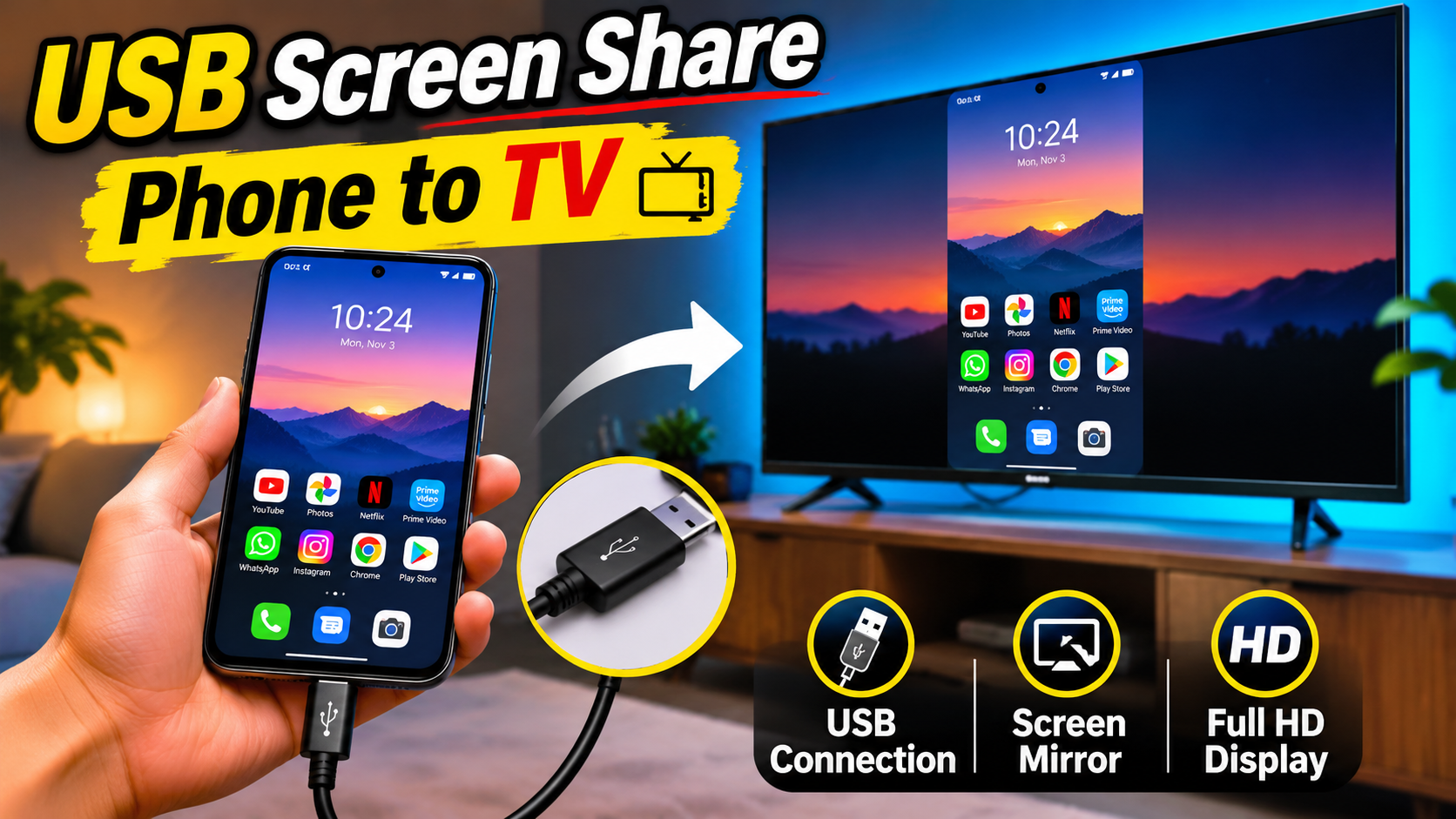
Introduction to USB Screen Share – Phone to TV
USB Screen Share – Phone to TV is a useful technology that allows users to display their smartphone screen on a television using a USB connection. With this feature, users can enjoy videos, photos, presentations, mobile games, and other content on a bigger screen. Instead of watching everything on a small mobile display, they can connect their smartphone to a compatible television and experience content more comfortably.
Screen sharing has become increasingly popular because people use smartphones for entertainment, online learning, office work, video streaming, and personal activities. Although wireless screen mirroring is convenient, USB-based connections can be useful when Wi-Fi is unavailable or when users prefer a wired connection. However, it is important to understand that not every USB cable or television supports direct screen mirroring. The connection method depends on the smartphone’s hardware, television compatibility, and supported connection technologies.
What Is USB Screen Share?
USB Screen Share is a method of displaying smartphone content on another screen through a compatible wired connection. It allows users to transfer supported audio and video signals from a mobile device to a television. Depending on the device, this may require USB-C video output, an HDMI adapter, or a compatible screen-sharing accessory.
Related Posts
Many people assume that connecting a phone to a TV using an ordinary USB charging cable automatically mirrors the entire mobile screen. However, this is not always possible. Standard USB connections generally support charging and file transfers rather than direct video output. For complete screen mirroring, the smartphone must support an appropriate video output technology, such as DisplayPort Alternate Mode over USB-C, or another compatible solution.
How Does Phone-to-TV USB Screen Sharing Work?
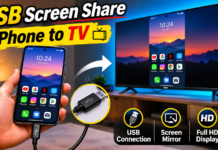
USB screen sharing works by transmitting supported display signals from a smartphone to a television through compatible hardware. When a phone supports video output through its USB-C port, users can connect it to an HDMI adapter and then connect the adapter to the television using an HDMI cable.
After establishing the connection, the television receives the video signal and displays the smartphone screen. Depending on the phone and adapter, users may be able to view applications, browse websites, watch downloaded videos, and play supported games.
Some Android smartphones also support desktop-style display modes when connected to an external monitor or television. These features can provide a computer-like experience with a larger interface. The exact functionality depends on the smartphone manufacturer and operating system.
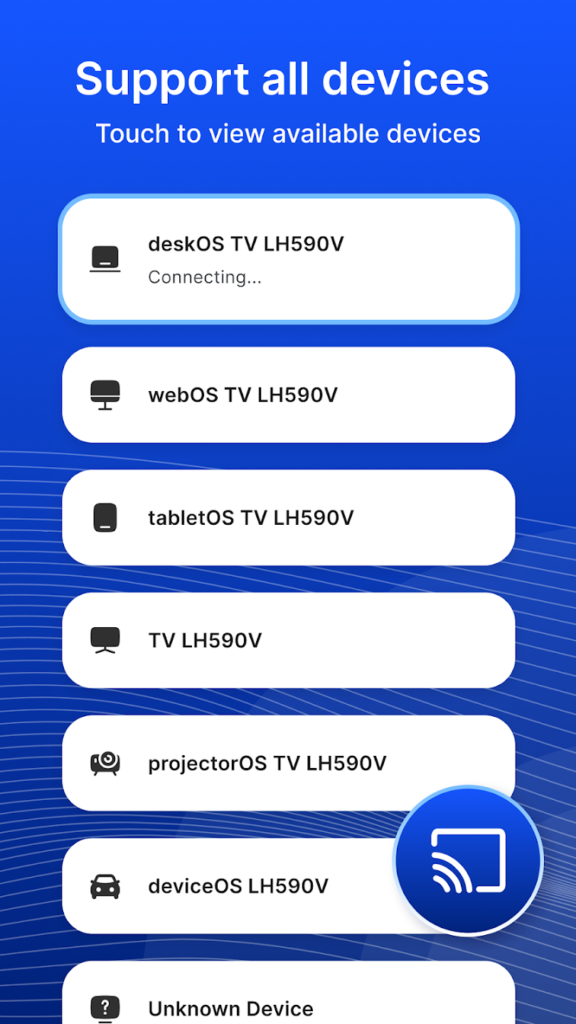
Requirements for Connecting a Phone to a TV Using USB
Before starting the screen-sharing process, users should check whether their smartphone and television support the required connection method. Having the correct accessories is important for achieving a stable connection.
The smartphone should support USB-C video output or another compatible display connection technology. Users may need a USB-C-to-HDMI adapter, an HDMI cable, and a television with an available HDMI port. Some older smartphones use Micro-USB ports and may require specific MHL-compatible accessories, provided the phone supports MHL technology.
The television should have an HDMI input or another supported video input. Users should also check whether the adapter supports their smartphone model. Choosing a compatible adapter helps prevent connection problems and display errors.
How to Connect an Android Phone to a TV Using USB
Connecting an Android smartphone to a television through USB-based video output is relatively simple when both devices support the required technology. First, check whether the smartphone supports video output through its USB-C port. If supported, purchase a compatible USB-C-to-HDMI adapter.
Connect the USB-C end of the adapter to the smartphone. Next, connect an HDMI cable between the adapter and the television. Turn on the television and select the correct HDMI input source using the TV remote control.
Once the connection is established, the smartphone display may automatically appear on the television. In some cases, users may need to select an external display option or approve a connection notification on their phone. After successful connection, they can open supported applications and enjoy content on the larger screen.
How to Connect an iPhone to a TV Using a USB Connection
iPhone users can also connect their devices to compatible televisions using wired display adapters. The required accessory depends on the iPhone model and its charging port. Older Lightning-based iPhones generally require a compatible Lightning Digital AV Adapter, while supported USB-C iPhone models can use a compatible USB-C-to-HDMI adapter.
To establish the connection, connect the appropriate adapter to the iPhone. Then attach an HDMI cable to the adapter and connect the other end to the television. Select the corresponding HDMI input on the TV.
After connecting, supported iPhone screen content can appear on the television. Users can view photos, videos, presentations, and compatible applications. Some streaming applications may restrict external display output because of content protection policies.
USB Screen Share Using a Regular USB Cable
A regular USB cable can connect many smartphones to televisions, but it does not necessarily provide complete screen mirroring. In most cases, connecting a phone through a standard USB cable allows the television to access supported media files rather than display the entire phone interface.
For example, users may connect an Android smartphone to a television and select File Transfer or MTP mode if supported. The television may then allow users to browse photos, music, and video files stored on the phone.
This method is useful for viewing downloaded media without installing additional applications. However, users should remember that USB file transfer and full-screen mirroring are two different functions. A standard USB cable cannot create video output if the smartphone does not support the required hardware.
Benefits of USB Screen Sharing
USB screen sharing provides several benefits for smartphone users who want to enjoy content on larger displays. One of the main advantages is the ability to watch videos and view photographs on a television instead of a small mobile screen. This is particularly useful when spending time with family or sharing memories with friends.
Another advantage is that a wired connection does not depend on a wireless network for transmitting supported video signals. This can be helpful in locations where Wi-Fi connectivity is limited or unavailable.
USB-based display connections can also provide a convenient way to show presentations, educational materials, documents, and other work-related content. Mobile gamers may also benefit from playing supported games on a larger display, although performance and input delay depend on the devices and accessories being used.
USB Screen Share for Watching Movies and Videos
Watching movies and videos on a television is one of the most common reasons people connect smartphones to larger displays. With a compatible USB-to-HDMI connection, users can play supported videos from their smartphones and view them on a television.
This method is useful for watching downloaded movies, personal recordings, educational videos, and other media files. Instead of gathering around a small phone screen, multiple people can watch the same content comfortably.
However, some online streaming platforms may restrict external display connections due to copyright protection technologies. Therefore, users should check whether their preferred streaming application supports wired external displays before purchasing an adapter.
USB Screen Sharing for Online Classes and Office Presentations
USB screen sharing is also useful for students, teachers, employees, and professionals. Students can display educational notes, PDF documents, learning materials, and presentations on a television. This makes it easier to understand information when studying with multiple people.
Teachers can use a compatible smartphone connection to display educational content during classroom activities. Similarly, office professionals can show documents, slides, charts, and other presentation materials during meetings.
A larger display improves visibility and helps everyone follow the information being presented. It can also reduce the need to transfer files between multiple devices when the required content is already available on the smartphone.
Difference Between USB Screen Share and Wireless Screen Mirroring
USB screen sharing and wireless screen mirroring are two different ways of displaying smartphone content on a television. USB screen sharing generally uses compatible cables and adapters to transmit video signals, while wireless mirroring uses supported wireless technologies such as Miracast, AirPlay, or manufacturer-specific casting features.
A wired connection can be useful when users want to avoid relying on Wi-Fi for display transmission. Wireless screen mirroring, on the other hand, provides greater freedom because users do not need to keep their phones physically connected to the television.
Both methods have advantages and limitations. The best option depends on device compatibility, connection requirements, convenience, and the type of content users want to display.
Common Problems and Troubleshooting Methods
Sometimes users may experience problems while connecting their smartphones to televisions. One common issue is that the television does not detect the smartphone. This can happen when the USB port does not support video output or when the connected adapter is incompatible.
Another problem is a black screen after selecting the HDMI input. Users should check whether the HDMI cable is properly connected and whether the correct input source has been selected. Restarting the smartphone and television may also help resolve temporary connection issues.
If the television only displays photos and videos instead of the complete smartphone interface, the connection may be operating in USB file-transfer mode rather than screen-mirroring mode. In this situation, users should check whether their smartphone supports USB video output.
Audio problems can also occur when using third-party adapters. Users should check the television’s audio settings, adapter compatibility, and smartphone display settings. Using certified accessories designed for the particular device can help reduce these problems.
Safety Tips While Using USB Screen Share
Users should always choose reliable USB cables and display adapters from trusted manufacturers. Low-quality accessories may cause unstable connections, overheating, or compatibility problems. It is also important to avoid using damaged cables or adapters.
When connecting a smartphone to a television, users should keep the phone in a ventilated area to prevent excessive heat buildup. Long periods of screen sharing, especially while charging and running demanding applications, can increase device temperature.
Users should also avoid displaying private messages, banking information, passwords, and personal notifications when sharing their phone screen with other people. Checking notification settings before starting a presentation or movie can help protect personal information.
Frequently Asked Questions About USB Screen Share
Can I connect any Android phone to a TV using a USB cable?
No. Not every Android smartphone supports direct USB video output. The phone must support a compatible display technology, or users must choose another supported screen-sharing method.
Can I mirror my entire phone screen using a normal charging cable?
Generally, no. A regular USB charging cable usually supports charging or file transfer. Full-screen mirroring requires compatible video output hardware and accessories.
Does USB screen sharing require an internet connection?
A wired HDMI display connection generally does not require an internet connection. However, internet access may be necessary for online videos, streaming applications, and web-based content.
Can I connect an iPhone to a television using USB?
Yes. Compatible iPhone models can connect to televisions through suitable Lightning or USB-C display adapters and an HDMI cable.
Why is my phone charging but not displaying on the TV?
The phone may support USB charging but not video output. Check your smartphone specifications and adapter compatibility before trying another connection.
Download Now
Conclusion
USB Screen Share – Phone to TV is a useful solution for displaying smartphone content on a larger television screen. It allows users to enjoy videos, photographs, presentations, educational materials, and supported applications more comfortably. With the right adapter, cable, and compatible devices, setting up a wired display connection can be simple and convenient.
However, users should understand the difference between USB file transfer and actual screen mirroring. A regular USB cable does not automatically support full-screen display output. Checking smartphone compatibility, choosing the correct accessories, and following the proper connection steps will help users enjoy a better phone-to-TV screen-sharing experience.